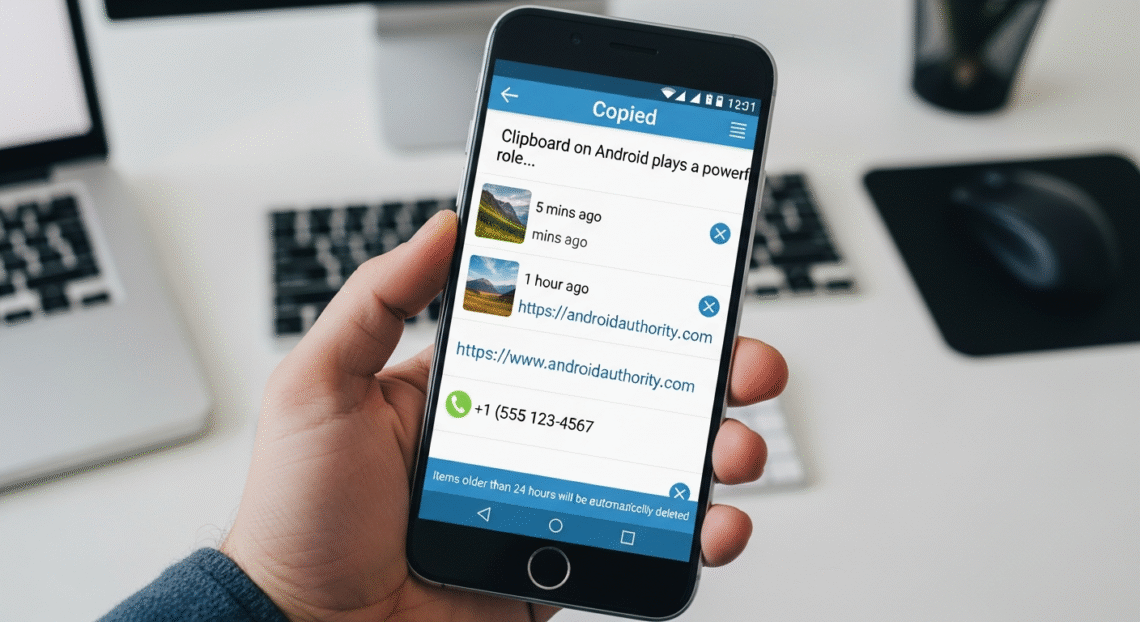
Clipboard on Android plays a powerful role in productivity. You copy text, images, links, phone numbers, and paste them where needed. However, many users don’t know where the clipboard is located, how long saved data remains, or how to manage it effectively. In this guide, you’ll learn everything about viewing, clearing, expanding storage, and improving clipboard use for work and daily tasks.
What Is Clipboard on Android
Clipboard on Android is a virtual temporary storage space that holds copied content until new data replaces it. Because it stores the last copied item, it helps you switch information quickly between apps. You can copy text from chat and paste it in notes, or copy an image and share it instantly.
How Clipboard Works on Android Devices
Clipboard on Android becomes active whenever you copy something. While copying saves data briefly, certain keyboards allow longer storage and history access. You can pin important copied entries for permanent access and create organized snippets for repeated use.
Where to Find Clipboard on Android
Accessing clipboard on Android depends on your keyboard. Most devices offer clipboard access directly above the keyboard. You’ll long-press inside a text field, tap “Paste,” and then open clipboard options. Once visible, you view copied text or media stored temporarily.
How to Open Clipboard on Android
- Open any text input field
- Long-press inside the field
- Tap Clipboard
- View copied items and select one to paste
With supported keyboards, you expand history, delete items, or pin entries. Navigation stays simple and smooth for daily use.
Clipboard History on Android Explained
Clipboard on Android stores only the last copied item by default. Certain keyboards allow full history with pinned items. Because storing many entries increases convenience, switching to a feature-rich keyboard boosts productivity.
How to Enable Clipboard History on Android
To enable clipboard history:
- Install a keyboard that supports clipboard history
- Open keyboard settings
- Enable Clipboard History toggle
After activation, every copied item remains available until you delete or clear it manually. You manage snippets, organize text, and use saved items repeatedly.
Best Ways to Use Clipboard on Android Efficiently
You boost productivity by saving frequent responses, email formats, or addresses. Because clipboard on Android works across apps, you copy once and paste many times. Manage entries, pin needed ones, and remove the rest for smooth workflow.
How to Clear Clipboard on Android
Clearing clipboard removes saved data and protects sensitive information.
Steps:
- Access clipboard panel
- Tap Delete All or select items individually
- Confirm clearing action
Clearing frees space and protects copied passwords or personal data.
Secure Use of Clipboard on Android
While clipboard simplifies sharing, sensitive data requires guarded handling. You should avoid copying passwords frequently and clear clipboard after pasting. Keeping history private improves security, especially when others use your device.
Using Clipboard with Different Keyboards
Clipboard with Gboard
Gboard includes clipboard history, smart suggestions, and advanced pasting support. Activate Clipboard from settings and pin important items for quick use.
Clipboard with Samsung Keyboard
Samsung phones offer a built-in clipboard manager. Access it through toolbar icons and enjoy floating windows for easy drag-paste features.
Clipboard with SwiftKey Keyboard
SwiftKey stores multiple entries and syncs across devices. Turn on cloud backup, and access clipboard anywhere for work or study tasks.
How to Paste from Clipboard on Android
- Tap inside a field
- Open clipboard menu
- Choose stored text or image
- Paste with one tap
Because the process contains only a few steps, beginners quickly pick it up.
How to Find Deleted Clipboard Items
Clipboard on Android loses unpinned entries when overwritten. You recover items only through third-party apps with history storage or backup settings. Because backups save time, enabling history helps avoid future loss.
Using Clipboard for Productivity and Work
Clipboard on Android supports multi-tasking, data transfer, and note-taking. You prepare templates for email, work reports, or assignments. Copy lines from meetings, paste in documents, and move fast between apps with fluid workflow.
Clipboard Apps for Extended Control
You install clipboard managers to expand features. These apps allow unlimited history, search filters, formatting, and floating buttons. With organized lists, you find and paste text instantly.
Troubleshooting Clipboard Not Working on Android
When clipboard fails to copy or paste:
- Restart device
- Force stop keyboard
- Clear keyboard cache
- Enable clipboard permissions
After basic fixes, clipboard returns to normal with smooth performance.
Final Thoughts
Clipboard on Android increases efficiency, speeds up tasks, and improves digital workflows. You manage copied data, enable history, paste instantly, and use third-party tools for advanced features. Start exploring your clipboard today and upgrade productivity with smarter copy-paste use.
FAQs
1. Where is clipboard stored on Android?
Clipboard stores copied items in temporary memory, accessible from keyboard or long-press menu.
2. Can clipboard save multiple items?
Yes, with keyboards or apps that support clipboard history.
3. How long does clipboard keep copied text?
Clipboard holds text until replaced, or permanently if pinned.
4. How do I delete clipboard data?
Open clipboard panel and remove items individually or clear all.
5. Can I recover old clipboard entries?
Deleted items cannot be recovered unless saved in history through an app or keyboard.